
Highlights / MaxCLL / Heatmap
Check MaxCLL and locate brightness peaks.
A specular highlight, bright credits or a stray pixel can determine the MaxCLL of an entire file. HDRmaster shows where high levels occur and which image areas produce them, helping you decide whether to adjust metadata or investigate the image.
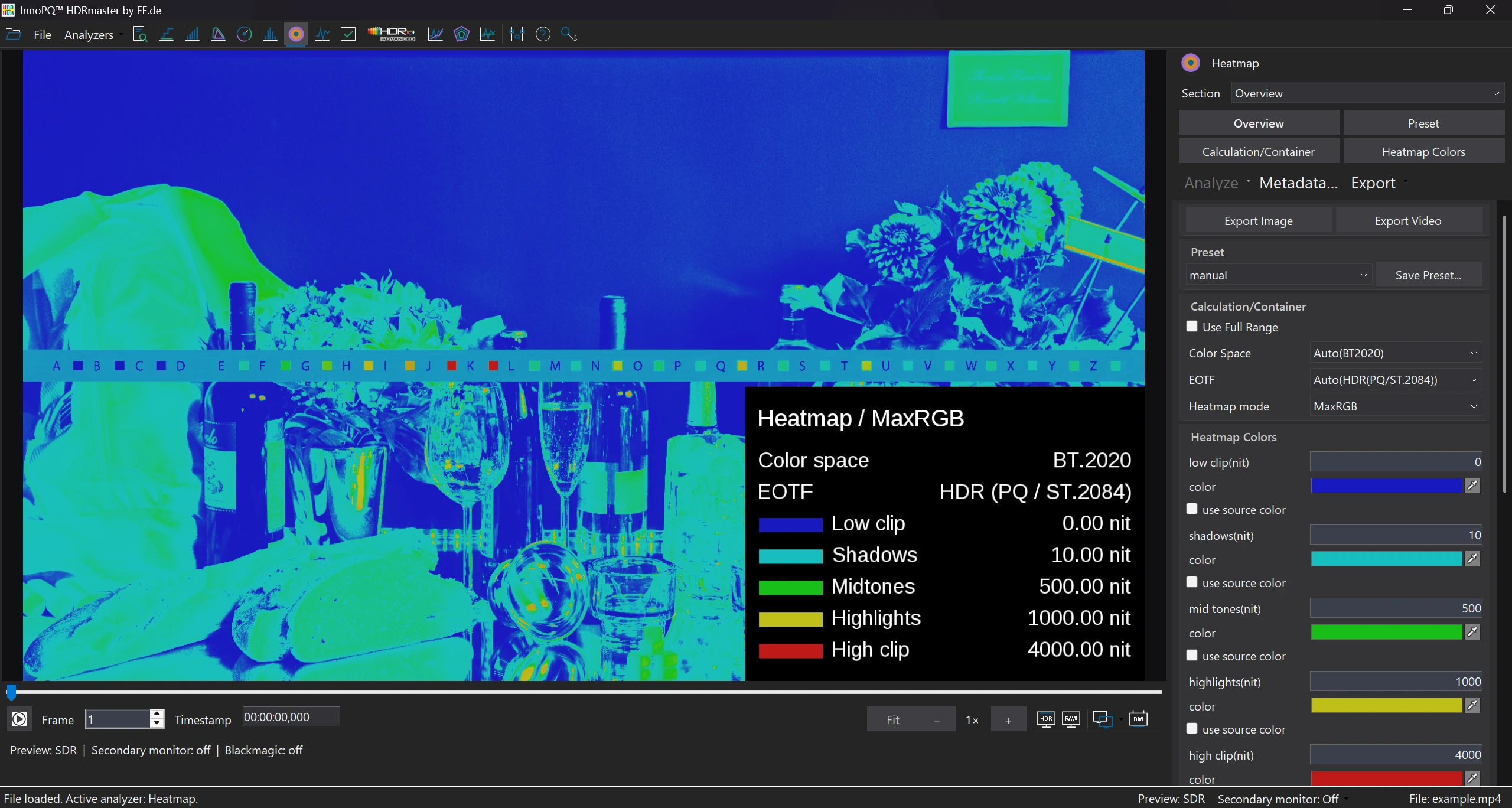
In this screenshot
- 1000 / 4000 nits
- The legend shows the highlight and High Clip thresholds.
- Colour marking
- Bright reflections can be located in the image.
Which part of the image drives the value?
MaxCLL describes a content-light maximum. MaxFALL describes the maximum of frame-average light levels. They answer different questions, and neither value describes the capabilities of the mastering display.
An intended specular highlight, bright credits, sharpening overshoot or an isolated faulty pixel can influence a maximum. To evaluate a high value, keep the analysed source and frame range fixed and find the image area behind it.
Follow the workflow
From the file maximum to the affected image area.
Analyse a defined source range
Record the source, EOTF, range interpretation, analysis resolution and frame interval. Titles, bars and cropped regions can affect the statistics.
Find the relevant frame
Use the analysis and frame navigation to reach the high-value region. Review nearby frames so that a short event is not treated as a persistent feature.
Set an informative heatmap threshold
Choose a threshold that answers your question and read the legend. A 1000 cd/m² threshold is an example setting, rather than a universal error boundary.
Zoom and inspect the pixels
Use the pixel readout and the surrounding image to distinguish the peak from the extent of the bright area. Note whether the value is MaxRGB or luminance Y.
Compare an explicitly filtered analysis
When using a bright-pixel exclusion, retain the raw result. Record the filter setting and compare the same source range; the filtered value answers a different statistical question.
MaxRGB heatmap: thresholds and image areas
Animated detail view of a software screenshot.
Read the video transcript
The animated screen tour guides attention over the original Heatmap view. Read the threshold and legend, then relate the highlighted area to the source frame. The camera movement is editorial zoom over a screenshot.
Highlight, title sequence or outlier?
The heatmap shows the spatial extent of high levels. Nearby frames help distinguish a sustained highlight from a brief anomaly, particularly when encoding, sharpening or late-added credits have raised the maximum.
Excluding a chosen percentage of the brightest pixels provides an additional analysis without those extreme values. Compare it with the unfiltered maximum and document the exclusion if it informs a metadata adjustment.
Result
Document the cause of high levels.
Locate the issue by frame and pixel value. This helps establish whether a peak belongs to the picture or needs attention in grading or encoding.
Share a CSV analysis and the relevant frame with the next team. An additional analysis excluding the brightest pixels shows how strongly a small number of outliers affects the statistics.
What to do next
Inspect the edge with an A–B profile, or compare content-light findings with the file metadata. Reanalyse any changed output before you use the new values.
Requirements & licenceCommon questions
HDRmaster questions
Does high MaxCLL mean bad HDR?
No. A bright intended highlight can be legitimate. Locate the peak and inspect its spatial and temporal context before making a quality judgement.
Why can MaxFALL be much lower?
MaxFALL comes from frame averages. A small bright area can create a high maximum while contributing relatively little to the average of the whole frame.
Should I remove the brightest pixels from the statistic?
Only for a defined comparison. Preserve the raw result, identify the exclusion setting and explain what the filtered result is intended to show.
Does a metadata edit remove a bright artefact?
Metadata and image processing are different operations. Fix an image defect in the relevant creative or encoding path, then analyse the resulting file.
Licence & included tools
HDRmaster with Gamut Rings OFX.
Use HDRmaster to analyse video signals, inspect colour and create static and dynamic HDR metadata. Gamut Rings OFX is included for colour-gamut investigation in DaVinci Resolve.
- Windows software for one active computer per licence
- Transfer activation by deactivating the previous computer
- New versions are currently free of charge
- Order Choose your billing country and payment method in the Digistore24 checkout. Review the final price and purchase terms.
- Download After payment is received, open your delivery link and save the installer and licence key.
- Activate Install on your Windows workstation and activate your licence. Contact FF Pictures for questions about your setup.
799 EUR net
One-time purchase · one active workstation
Applicable taxes and the final total are shown in the Digistore24 checkout for your billing country.
Buy HDRmasterDigistore24
After payment is received, Digistore24 provides the software download and licence key. The checkout currently allows five downloads within three months of payment. Keep the installer, order details and licence key for later use.
You are ordering through Digistore24. The checkout shows availability for your billing country and the applicable purchase and return terms. For multiple licences or company procurement, contact FF Pictures.
Discuss my workflow or company order →