
RAW / HDR / Windows display / Blackmagic
Preview HDR in the application and on external displays.
Review your material in HDR while analysing levels and metadata. Use the application window, a second Windows HDR monitor or supported Blackmagic hardware for output to an external display.
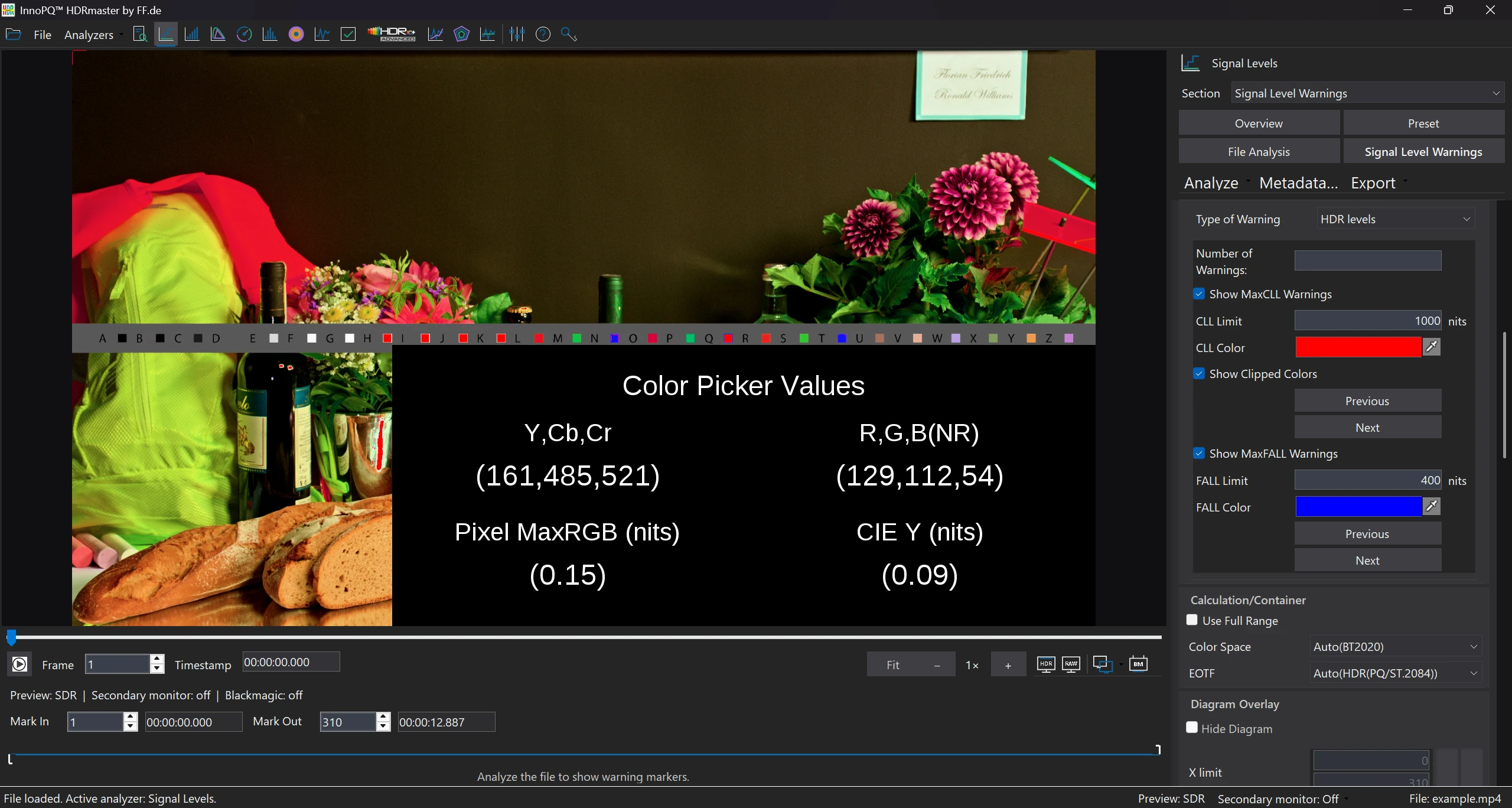
In this screenshot
- RAW / HDR
- Preview controls are directly below the image.
- External output
- Second-monitor and Blackmagic controls sit alongside them.
Choose the preview display for your workstation.
HDR preview in the application keeps picture review and analysis together. A second HDR monitor provides a separate picture view, while Blackmagic hardware supports output to an external TV or monitor.
RAW refers to preview without preview tone mapping. Switching modes helps you examine the effect of preview processing.
Follow the workflow
Configure HDR preview and external output.
Start with the file and its interpretation
Open the source and confirm the EOTF, primaries and range interpretation relevant to the task. Keep a known frame for comparisons.
Use RAW or HDR in the application
Select the preview mode appropriate to the question. Note when tone mapping is part of the view and avoid treating the view as the untouched source.
Configure a second Windows HDR display
Use an HDR-capable display, enable HDR for that display in Windows and confirm the GPU, driver and connection. Select the intended display in the monitoring workflow.
Configure Blackmagic output
Select supported output hardware, an output mode and the connected HDR display.
Compare the picture and values
Review the same frame in preview and numerical analysis to investigate the effect of the display path.
Configure the display for the task.
Windows HDR preview requires a compatible display, GPU, driver and connection. Enable HDR in Windows for the selected monitor.
Blackmagic uses a separate hardware output path. Select a supported output mode and a suitable HDR display.
Numerical analysis describes the decoded file. Use it to check whether an issue is present in the signal or arises during display.
Result
Review the HDR picture alongside signal analysis.
Check suspect frames numerically and visually without opening another application for each picture review. A second monitor or Blackmagic hardware adds a separate picture output.
Use the same frame, preview mode and display setup for repeatable comparisons.
The next step
Use numerical pixel or gamut analysis to answer source questions. Contact FF Pictures with your hardware and output requirements before purchasing for a specific monitoring setup.
Requirements & licenceCommon questions
HDRmaster questions
Does RAW mean camera RAW support?
Here RAW names a preview mode that bypasses preview tone mapping. Camera-file compatibility is a separate format question.
Where should I enable Windows HDR?
Enable HDR for the selected HDR-capable display in Windows. Then confirm that the application monitoring route uses the intended display.
Is Blackmagic the same as a second desktop display?
No. Blackmagic is a separate hardware output path. Confirm the device, output mode and receiving display for the required workflow.
Can the website prove how HDR looks on my monitor?
No. The media explain the interface and analysis. HDR appearance depends on your playback and display path; optical accuracy requires a suitable verification.
Licence & included tools
HDRmaster with Gamut Rings OFX.
Use HDRmaster to analyse video signals, inspect colour and create static and dynamic HDR metadata. Gamut Rings OFX is included for colour-gamut investigation in DaVinci Resolve.
- Windows software for one active computer per licence
- Transfer activation by deactivating the previous computer
- New versions are currently free of charge
- Order Choose your billing country and payment method in the Digistore24 checkout. Review the final price and purchase terms.
- Download After payment is received, open your delivery link and save the installer and licence key.
- Activate Install on your Windows workstation and activate your licence. Contact FF Pictures for questions about your setup.
799 EUR net
One-time purchase · one active workstation
Applicable taxes and the final total are shown in the Digistore24 checkout for your billing country.
Buy HDRmasterDigistore24
After payment is received, Digistore24 provides the software download and licence key. The checkout currently allows five downloads within three months of payment. Keep the installer, order details and licence key for later use.
You are ordering through Digistore24. The checkout shows availability for your billing country and the applicable purchase and return terms. For multiple licences or company procurement, contact FF Pictures.
Discuss my workflow or company order →